Deploy MinIO AIStor on Red Hat OpenShift
MinIO AIStor is licensed under the MinIO Software License. An active license is required for production deployments.
This page documents the installation and management of MinIO AIStor object storage using MinIO’s Red Hat OpenShift-certified operator through the Red Hat OLM.
If you prefer to install on OpenShift using regular Helm charts, use the regular install instructions.
This procedure assumes that the user interacting with the OpenShift cluster has authorization to:
- Install Kubernetes operators and associated resources including CustomResourceDefinitions, StatefulSets, and Secrets into new or existing Namespaces.
- Perform operations as a user that has broad permissions to create resources within multiple Namespaces.
Operator and OpenShift version compatibility
The following table lists the MinIO AIStor Operator versions that Red Hat publishes in the certified operator catalog for each OpenShift release.
Each mark records what that catalog contains, as generated on 2026-07-17 from the certified-operators catalogs at commit 0b1710a.
Catalog contents change as Red Hat publishes new bundles, and a cluster that uses a mirrored, restricted, or custom catalog can offer a different set.
| Operator version | 4.13 | 4.14 | 4.15 | 4.16 | 4.17 | 4.18 | 4.19 | 4.20 | 4.21 | 4.22 |
|---|---|---|---|---|---|---|---|---|---|---|
2026.7.9050221 | ✓ | ✓ | ✓ | ✓ | ✓ | ✓ | ✓ | |||
2026.4.13102716 | ✓ | ✓ | ✓ | ✓ | ✓ | ✓ | ||||
2026.3.18173617 | ✓ | ✓ | ✓ | ✓ | ✓ | ✓ | ||||
2026.2.9031243 | ✓ | ✓ | ✓ | ✓ | ✓ | ✓ | ✓ | ✓ | ✓ | |
2025.12.20100920 | ✓ | ✓ | ✓ | ✓ | ✓ | ✓ | ✓ | ✓ | ✓ | |
2025.12.19091821 | ✓ | ✓ | ✓ | ✓ | ✓ | ✓ | ✓ | ✓ | ✓ | |
2025.12.19074437 | ✓ | ✓ | ✓ | ✓ | ✓ | ✓ | ✓ | ✓ | ✓ | |
2025.8.19175300 | ✓ | ✓ | ✓ | ✓ | ✓ | ✓ | ✓ | ✓ | ✓ | |
2025.5.12190907 | ✓ | ✓ | ✓ | ✓ | ✓ | ✓ | ✓ | ✓ | ✓ |
| Mark | Meaning |
|---|---|
✓ | Red Hat publishes the Operator version in that OpenShift catalog. |
| (empty) | Red Hat does not publish the Operator version in that OpenShift catalog. |
Select an Operator version
For a new installation, use the most recent version marked ✓ for your OpenShift version.
A Subscription refers to a version by its full CSV name, which prefixes the version with the package name and a v.
For example, on OpenShift 4.16 and later the most recent version is minio-object-store-operator.v2026.7.9050221, while OpenShift 4.13 to 4.15 requires minio-object-store-operator.v2026.2.9031243.
Install the MinIO AIStor Operator
This section installs the OpenShift-certified MinIO AIStor Operator. You must complete this section before proceeding to deploying MinIO AIStor.
As an alternative to the procedure below, you can install the Operator using the OpenShift Operator Hub.
Search for MinIO, select the MinIO AIStor Operator for installation, then follow the displayed instructions.
-
Retrieve your license file
Log into SUBNET and select the License button in the Deployments view.
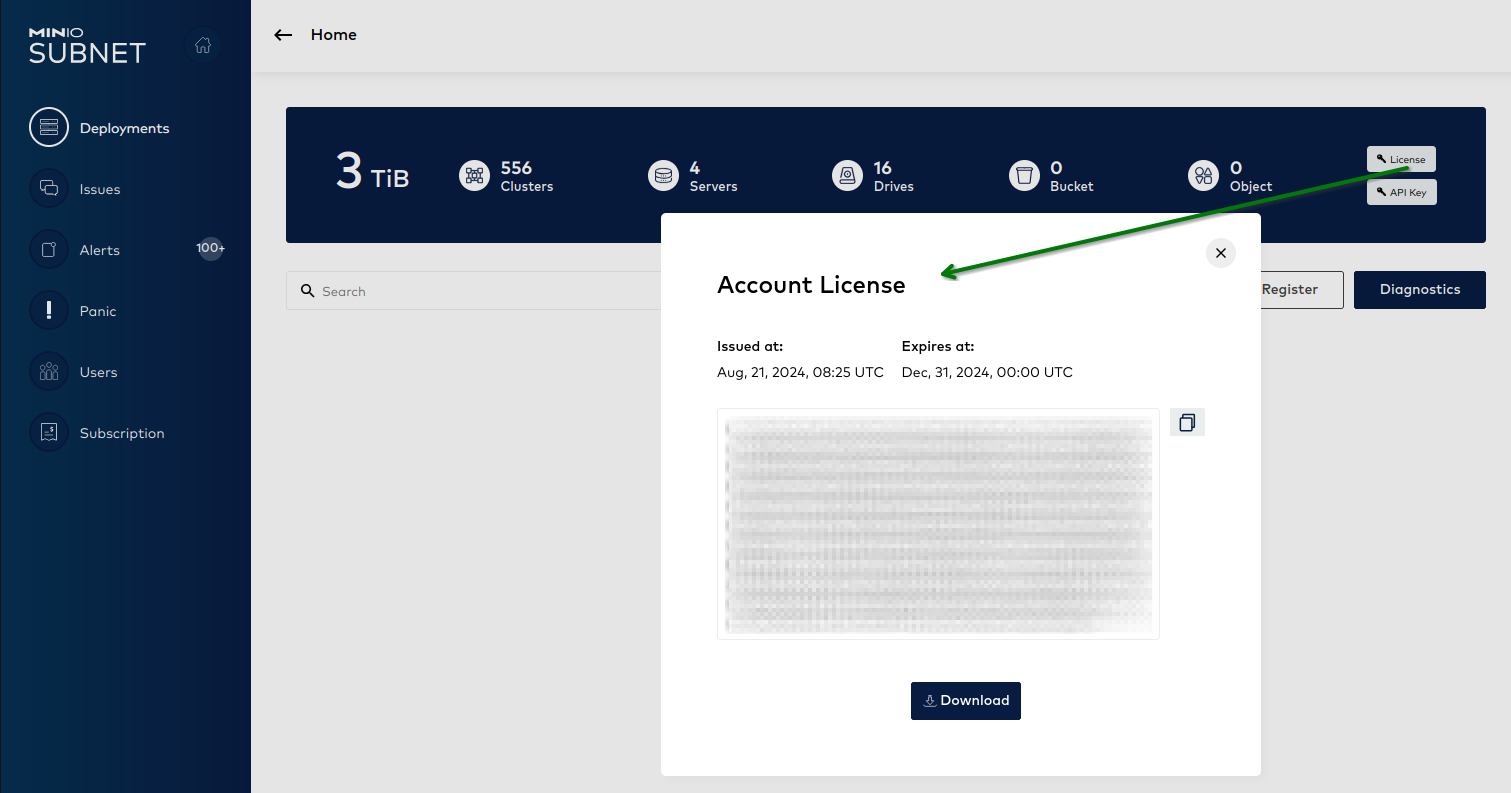
The Account License modal Save the value to a secure location for use in a subsequent step.
License Management
Starting with AIStor Server RELEASE.2025-12-20T04-58-37Z, deployments can start without a license in offline mode. All S3 operations are blocked until you install a valid license, but the Admin API and Console remain accessible.
After deployment starts, you can register with SUBNET and apply your license:
mc license register ALIAS --license /path/to/minio.licenseFor license renewal, expiration details, and mode restrictions, see Licenses.
-
Create the MinIO AIStor namespace
Use the
occommand to create a new project for MinIO AIStor:oc new-project aistor -
Create and apply the SUBNET license secret
Use the following file as a template. Replace the
minio.licensevalue with the base64-encoded value of your SUBNET license.# license.yaml apiVersion: v1 data: minio.license: <BASE64_ENCODED_LICENSE> kind: Secret metadata: name: minio-license type: OpaqueApply the license to the
aistornamespace:oc apply -f license.yaml -n aistor -
Create the operator manifest and install to the namespace
Use the following file as a template for the operator bundle. For additional configuration options, see the Operator Environment Variables reference.
# subscription.yaml

apiVersion: operators.coreos.com/v1alpha1
kind: Subscription
metadata:
   name: minio-object-store-operator
spec:
   channel: stable
   installPlanApproval: Automatic
   name: minio-object-store-operator
   source: certified-operators
   sourceNamespace: openshift-marketplace
   startingCSV: minio-object-store-operator.v2026.7.9050221
---
apiVersion: operators.coreos.com/v1
kind: OperatorGroup
metadata:
   name: objectstore-operator-group
The
startingCSVabove names the most recent Operator version that Red Hat publishes, which OpenShift 4.16 and later offer. On OpenShift 4.13 to 4.15, replace it with the most recent version marked✓for your OpenShift version in the compatibility table, or theSubscriptioncannot resolve.The OperatorGroup controls which namespaces the Operator watches. As written above, it has no
spec.targetNamespaces, so the Operator watches every namespace in the cluster. This is the OLMAllNamespacesinstall mode, and every Operator version in the compatibility table supports it.Certified Operator
2026.7.9050221and later also let you scope the Operator to a set of namespaces. Create those namespaces before you apply the OperatorGroup. OLM binds the Operator’s namespaced permissions into each target namespace, which it cannot do for a namespace that does not exist yet:oc new-project aistor-primary oc new-project aistor-secondaryThe next section creates
aistor-primarywith the same command, so skip that step if you create the namespace here.Then add
spec.targetNamespacesto the OperatorGroup:apiVersion: operators.coreos.com/v1 kind: OperatorGroup metadata: name: objectstore-operator-group spec: targetNamespaces: - aistor-primary - aistor-secondaryList every namespace that holds an ObjectStore resource. The Operator reconciles ObjectStore resources only in the namespaces you list, and OLM grants it namespaced permissions only there. An ObjectStore you create in any other namespace is never reconciled.
A namespace holds at most one OperatorGroup, and that OperatorGroup governs every Operator installed in the namespace. The MinIO KMS Operator supports the
AllNamespacesinstall mode only, so install it in a namespace of its own rather than alongside a scoped object store Operator.Version added
Scoping the Operator to a set of namespaces requires certified Operator
2026.7.9050221or later. Earlier versions in the compatibility table declareAllNamespacesas their only supported install mode. On those versions, an OperatorGroup that setsspec.targetNamespacesleaves the ClusterServiceVersion inUnsupportedOperatorGroupand the Operator never installs. OpenShift 4.13 to 4.15 offer no Operator version that supports scoping, so omitspec.targetNamespaceson those releases.Apply the manifest to the
aistornamespace:oc apply -f subscription.yaml -n aistor -
Next steps
You can now deploy MinIO AIStor object storage to your OpenShift cluster using the OpenShift UI.
Deploy MinIO AIStor using OpenShift
SELinux on OpenShift
OpenShift clusters with SELinux enabled may experience Pod startup failures when using large Persistent Volumes. The error is due to SELinux applying labels to each object in a Persistent Volume.
For clusters with SELinux enabled, see SELinux configuration for additional configuration steps to take.
-
Create the project
Use the
oc new-projectcommand to create a project for the MinIO AIStor deployment:oc new-project aistor-primary -
Create a secret for the storage configuration
MinIO AIStor uses a plaintext configuration file for looking up environment variables. Create a Kubernetes secret where the
config.envkey has the list of environments inexport ENVVARformat.# storage-configuration.yaml apiVersion: v1 kind: Secret metadata: name: storage-configuration type: Opaque stringData: config.env: |- export MINIO_ROOT_USER=aistor-admin export MINIO_ROOT_PASSWORD=REPLACEME123Modify the file to reflect your desired configuration, then apply the file to the project:
oc apply -f storage-configuration.yaml -n aistor-primary -
Label the nodes for spread zones
Spread zone configuration distributes the Pods of a pool across zones, the failure domains you define with node labels. This configuration is optional. If you want it, apply the node labels now, before you create the object store. The Operator assigns each Pod its zone when it first creates the Pod, and injects a node affinity that requires a node in that zone. A Pod assigned to a zone that no node carries stays unschedulable. Labels you add later do not move Pods that OpenShift has already scheduled.
Version added
The Operator assigns Pods to zones through an admission webhook. Red Hat first published that webhook in certified Operator version
2025.12.20100920. Earlier versions in the compatibility table do not include it, so spread zone configuration has no effect on them.A zone is whatever you label as one. Label each host as its own zone to spread the Pods of a pool across hosts, or label each rack as a zone to spread them across racks. The Operator assigns the Pods to the zones in a round robin. The example pool in Create a MinIO AIStor object store resource deploys eight servers, so it needs at least eight zones for each Pod to land in a zone of its own.
Give every node that can host the pool a label naming the zone it belongs to. The following commands put each of the eight nodes of the example pool in a zone of its own:
oc label node NODE_1 topology.kubernetes.io/zone=zone-1
oc label node NODE_2 topology.kubernetes.io/zone=zone-2
oc label node NODE_3 topology.kubernetes.io/zone=zone-3
oc label node NODE_4 topology.kubernetes.io/zone=zone-4
oc label node NODE_5 topology.kubernetes.io/zone=zone-5
oc label node NODE_6 topology.kubernetes.io/zone=zone-6
oc label node NODE_7 topology.kubernetes.io/zone=zone-7
oc label node NODE_8 topology.kubernetes.io/zone=zone-8
Then enable spread zones on each pool of the object store and list every zone the pool uses:
spec:
  pools:
    - name: pool-0
      spreadZoneConfig:
        enabled: true
        matchValues:
          - zone-1
          - zone-2
          - zone-3
          - zone-4
          - zone-5
          - zone-6
          - zone-7
          - zone-8
The default
matchLabelistopology.kubernetes.io/zone. To group nodes by a different label, setmatchLabelon the pool and apply that label to the nodes instead.Set
matchValueson every pool you enable. If you leave it out, the Operator builds the zone list from every node in the cluster that carries thematchLabel, not only the nodes you intend for the pool. Zones that hold no node for the pool still take a turn in the round robin. Runoc get nodes -L topology.kubernetes.io/zoneto see which nodes already carry the label.These settings belong under
spec.pools[].spreadZoneConfigin the ObjectStore resource. Spread Zone Configuration covers the same settings in the Helm chart values form, which applies only to a Helm installation. -
Open the OpenShift UI and navigate to the MinIO AIStor Operator
Use your preferred browser to access the UI for your OpenShift installation. Select the MinIO AIStor Operator from the list of installed operators.
-
Create a MinIO AIStor object store resource
You can deploy MinIO AIStor using the OpenShift UI or the
ocCLI tool.The UI provides a tab for deploying new object store resources. Use either the UI or the YAML editor to construct the MinIO AIStor definition.
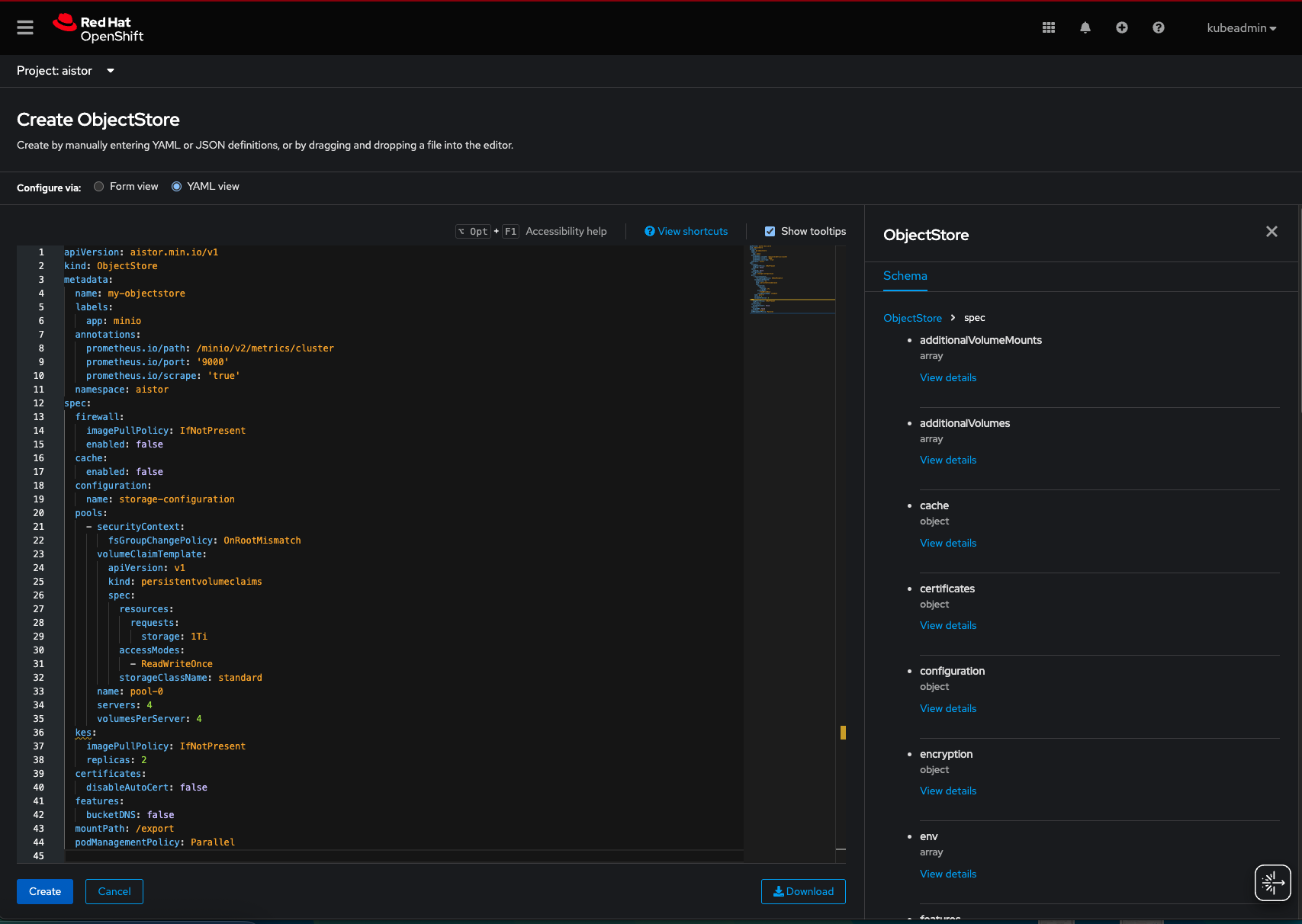
You can use the following example YAML as a baseline for further customization.
# aistor-primary-storage.yaml
apiVersion: aistor.min.io/v1
kind: ObjectStore
metadata:
  annotations:
    prometheus.io/path: /minio/v2/metrics/cluster
    prometheus.io/port: "9000"
    prometheus.io/scrape: "true"
  labels:
    app: minio
  name: aistor-primary
  namespace: aistor-primary
spec:
  certificates:
    disableAutoCert: false
  configuration:
    name: storage-configuration
  mountPath: /export
  podManagementPolicy: Parallel
  pools:
    - name: pool-0
      servers: 8
      volumeClaimTemplate:
        apiVersion: v1
        kind: persistentvolumeclaims
        spec:
          accessModes:
            - ReadWriteOnce
          resources:
            requests:
              storage: 1Ti
#         storageClassName: directpv-min-io
      volumesPerServer: 8
The example above uses the default storage class on the OpenShift cluster. You can specify a custom storage class instead, such as MinIO DirectPV, for provisioning Persistent Volumes to support the MinIO AIStor deployment.
Create a YAML file for describing the object store resource. You can use the following example YAML as a baseline for further customization.
# aistor-primary-storage.yaml
apiVersion: aistor.min.io/v1
kind: ObjectStore
metadata:
  annotations:
    prometheus.io/path: /minio/v2/metrics/cluster
    prometheus.io/port: "9000"
    prometheus.io/scrape: "true"
  labels:
    app: minio
  name: aistor-primary
  namespace: aistor-primary
spec:
  certificates:
    disableAutoCert: false
  configuration:
    name: storage-configuration
  mountPath: /export
  podManagementPolicy: Parallel
  pools:
    - name: pool-0
      servers: 8
      volumeClaimTemplate:
        apiVersion: v1
        kind: persistentvolumeclaims
        spec:
          accessModes:
            - ReadWriteOnce
          resources:
            requests:
              storage: 1Ti
#         storageClassName: directpv-min-io
      volumesPerServer: 8
The example above uses the default storage class on the OpenShift cluster. You can specify a custom storage class instead, such as MinIO DirectPV, for provisioning Persistent Volumes to support the MinIO AIStor deployment. Modify the file to reflect your desired configuration, then apply the file to the project:
oc apply -f aistor-primary-storage.yamlTip: For production deployments, consider enabling PVC protection to prevent accidental data loss by adding
pvcProtection: trueto the ObjectStore spec. -
Monitor the Namespace
The MinIO AIStor Operator deploys resources to the Namespace that include Deployments, ReplicaSets, Services, and Pods. Once all Pods deploy successfully, you can access the MinIO AIStor services by configuring Routes, Ingress, or similar network controls.
The
minioservice provides access to the S3 API. The Console service takes the name of the object store with a-consolesuffix,aistor-primary-consolein this example, and provides access to the Console UI for web access and management. -
Expose access using routes
You can configure OpenShift Routes to expose the
minioandaistor-primary-consoleservices to external traffic. Setspec.hoston each Route to a hostname that resolves to the OpenShift router, and use a different hostname for each Route.The port name in
spec.port.targetPortdepends on whether the object store uses TLS. The examples below match the ObjectStore created above, which setsdisableAutoCert: falseand therefore uses TLS. If you disable automatic certificates and provide no certificates of your own, usehttp-minioandhttp-consoleinstead.The following example Route exposes the
minioservice for S3 access.kind: Route apiVersion: route.openshift.io/v1 metadata: name: route-object-store-s3-api namespace: aistor-primary annotations: openshift.io/host.generated: 'true' spec: host: openshift-worker-node-01.example.net to: kind: Service name: minio weight: 100 port: targetPort: https-minio tls: termination: passthrough insecureEdgeTerminationPolicy: Redirect wildcardPolicy: NoneYou can then access the service using the hostname and the
mc alias setcommand:mc alias set aistor-primary https://openshift-worker-node-01.example.net MINIO_ACCESS_KEY MINIO_SECRET_KEY --insecureThe following example Route exposes the Console service for browser access.
kind: Route
apiVersion: route.openshift.io/v1
metadata:
  name: route-object-store-console
  namespace: aistor-primary
spec:
  host: aistor-console.example.net
  to:
    kind: Service
    name: aistor-primary-console
    weight: 100
  port:
    targetPort: https-console
  tls:
    termination: passthrough
    insecureEdgeTerminationPolicy: Redirect
  wildcardPolicy: None
Open
https://aistor-console.example.netin a browser and sign in with the credentials in thestorage-configurationSecret.
SELinux configuration
On OpenShift clusters with SELinux enabled, MinIO AIStor Pods may fail to start with a CreateContainerError status.
This occurs because SELinux attempts to apply security labels to all files on mounted Persistent Volumes before allowing the container to start.
For Persistent Volumes with large numbers of files, this relabeling process can exceed container startup timeouts.
Symptoms
The following symptoms can help identify if the relabeling behavior is the root cause:
-
Pod status shows
CreateContainerError -
Pod events contain “context deadline exceeded” messages
-
Host logs show messages like:
Creation of container...is not yet finished. Currently at stage container volume configuration.
To confirm SELinux relabeling is causing the issue, check the CRI-O logs on the affected node:
journalctl -u crio -fLook for messages indicating the container is stuck at the “container volume configuration” stage.
Solutions
Choose one of the following approaches based on your security requirements and OpenShift version.
Recommended. This approach skips SELinux volume relabeling while maintaining security constraints. It requires creating a custom RuntimeClass and configuring CRI-O on your cluster nodes.
-
Create a MachineConfig to configure CRI-O to recognize the skip-relabeling annotation:
apiVersion: machineconfiguration.openshift.io/v1
kind: MachineConfig
metadata:
  labels:
    machineconfiguration.openshift.io/role: worker
  name: 99-worker-crio-selinux
spec:
  config:
    ignition:
      version: 3.2.0
    storage:
      files:
        - contents:
            source: data:text/plain;charset=utf-8;base64,W2NyaW8ucnVudGltZS5ydW50aW1lcy5zZWxpbnV4XQpydW50aW1lX3BhdGggPSAiL3Vzci9iaW4vcnVuYyIKcnVudGltZV9yb290ID0gIi9ydW4vcnVuYyIKcnVudGltZV90eXBlID0gIm9jaSIKYWxsb3dlZF9hbm5vdGF0aW9ucyA9IFsiaW8ua3ViZXJuZXRlcy5jcmktby5UcnlTa2lwVm9sdW1lU0VMaW51eExhYmVsIl0K
          mode: 0640
          overwrite: true
          path: /etc/crio/crio.conf.d/01-selinux.conf
The base64-encoded content configures a CRI-O runtime named
selinuxthat allows theTrySkipVolumeSELinuxLabelannotation.If you run MinIO AIStor Pods on control plane nodes, create an additional MachineConfig with
machineconfiguration.openshift.io/role: master. -
Create a RuntimeClass that references this configuration:
apiVersion: node.k8s.io/v1 kind: RuntimeClass metadata: name: selinux handler: selinux -
Update your ObjectStore definition to use the RuntimeClass and annotation:
apiVersion: aistor.min.io/v1
kind: ObjectStore
metadata:
  name: aistor-primary
  namespace: aistor-primary
spec:
  pools:
    - name: pool-0
      servers: 8
      volumesPerServer: 8
      runtimeClassName: selinux
      annotations:
        io.kubernetes.cri-o.TrySkipVolumeSELinuxLabel: "true"
      volumeClaimTemplate:
        # ... your PVC configuration
This approach uses a SecurityContextConstraint (SCC) with the spc_t SELinux type to bypass volume relabeling.
This method is less secure than the RuntimeClass approach as it grants broader permissions to the Pod.
-
Create a SecurityContextConstraint that allows the spc_t type:
apiVersion: security.openshift.io/v1 kind: SecurityContextConstraints metadata: name: minio-spc allowHostDirVolumePlugin: false allowHostIPC: false allowHostNetwork: false allowHostPID: false allowHostPorts: false allowPrivilegeEscalation: false allowPrivilegedContainer: false fsGroup: type: RunAsAny runAsUser: type: RunAsAny seLinuxContext: type: RunAsAny seLinuxOptions: type: spc_t supplementalGroups: type: RunAsAny volumes: - configMap - downwardAPI - emptyDir - persistentVolumeClaim - projected - secret -
Grant the SCC to the service account used by MinIO AIStor:
oc adm policy add-scc-to-user minio-spc -z aistor-primary-sa -n aistor-primary -
Update your
ObjectStoredefinition to specify the SELinux options:apiVersion: aistor.min.io/v1 kind: ObjectStore metadata: name: aistor-primary namespace: aistor-primary spec: pools: - name: pool-0 servers: 8 volumesPerServer: 8 securityContext: seLinuxOptions: type: spc_t
OpenShift 4.17 and later can avoid the error caused by relabeling time by using a developer preview offering called SELinux Mount. Refer to the Red Hat Knowledge Base for further guidance.
Additional configuration
MinIO AIStor supports the following additional ObjectStore configuration options:
- To configure MinIO AIStor using environment variables, including secure management of sensitive values with Kubernetes Secrets, see Environment Variable Configuration.
- To distribute pods across failure domains for improved fault tolerance, see Spread Zone Configuration.
- For all available Helm chart customization options, see the Object Store Helm Chart reference.