Install MinIO AIStor on Red Hat Enterprise Linux
MinIO AIStor is licensed under the MinIO Software License. An active license is required for production deployments.
This procedure downloads and installs the AIStor Server onto bare-metal hosts running Red Hat Enterprise Linux
Review the Hardware and System Requirements to ensure your target infrastructure meets our guidance. You can also open a SUBNET issue to request an architecture review or assistance during deployment.
MinIO strongly recommends using only RHEL releases in the Full Support lifecycle with Long-Term Support (LTS) Kernels in the 6.12 or later release series, such as RHEL 10. See Linux Kernel Requirements for recommended distributions and performance details.
Procedure
Repeat these steps for each node in the deployment.
-
Download the AIStor Server RPM package
MinIO AIStor provides a RPM package for the
AMD64andARM64architectures. Download the package that reflects the host system’s architecture:curl --progress-bar -L dl.min.io/aistor/minio/release/linux-amd64/minio.rpm -o minio.rpm sudo dnf install minio.rpmcurl --progress-bar -L dl.min.io/aistor/minio/release/linux-arm64/minio.rpm -o minio.rpm sudo dnf install minio.rpmYou can validate the installation by running
minio --version.The RPM package creates a new
systemdunit file for the AIStor Server. Runsystemctl status minioto validate the installation of thesystemdfile. -
Retrieve your license file
Log into SUBNET and select the License button in the Deployments view.
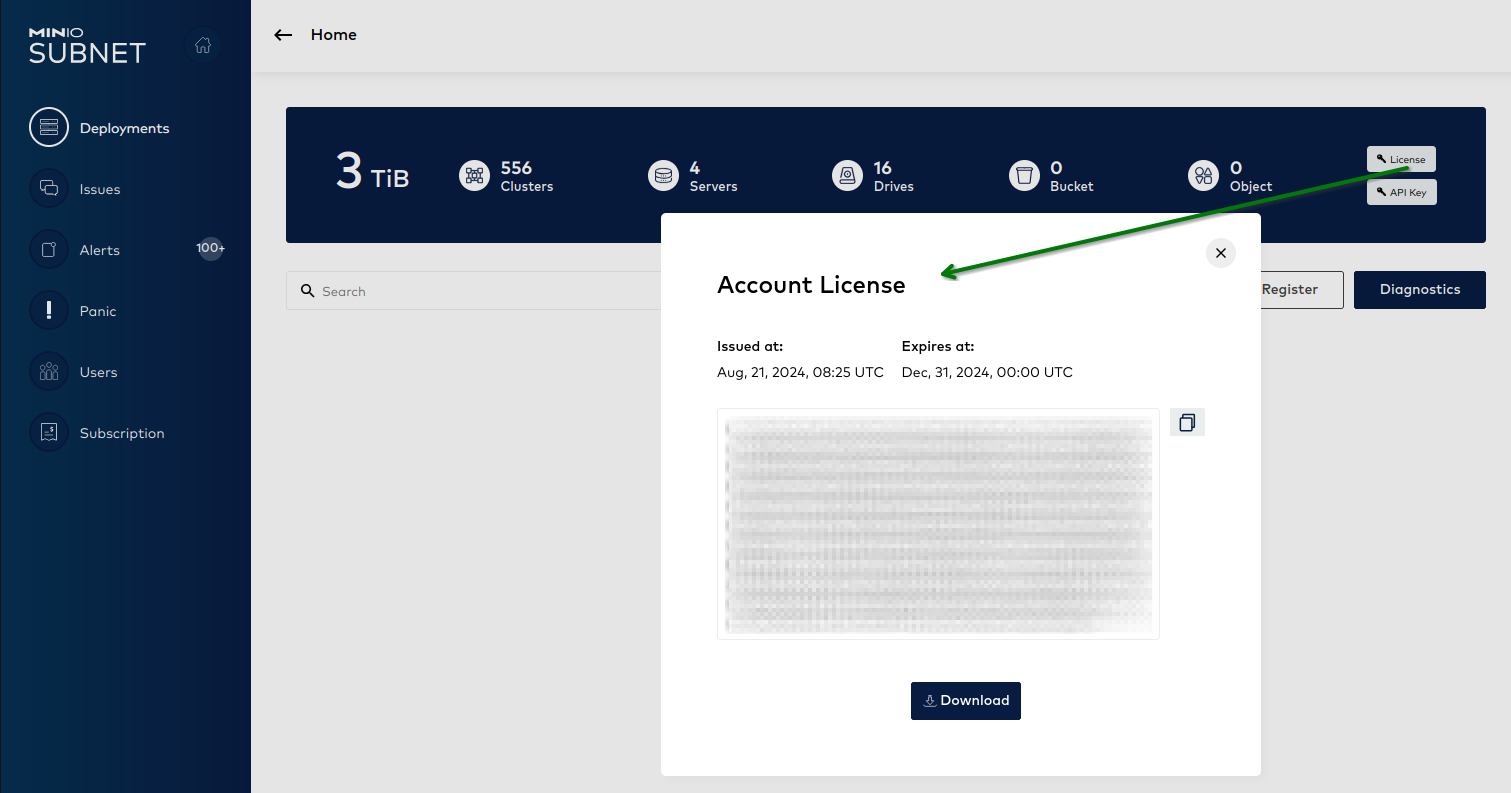
The Account License modal Create the
/opt/miniodirectory if it does not exist. Download the file to/opt/minio/minio.licenseand set the ownership tominio-user:sudo mkdir /opt/minio sudo touch /opt/minio/minio.license sudo chown -R minio-user:minio-user /opt/minioEdit the
minio.licensefile and replace its contents with the license string from the previous step.License Management
Starting with AIStor Server RELEASE.2025-12-20T04-58-37Z, deployments can start without a license in offline mode. All S3 operations are blocked until you install a valid license, but the Admin API and Console remain accessible.
After deployment starts, you can register with SUBNET and apply your license:
mc license register ALIAS --license /path/to/minio.licenseFor license renewal, expiration details, and mode restrictions, see Licenses.
-
Review the environment file
The RPM installs an environment file to
/etc/default/minioautomatically. Review the contents of the file and modify as directed based on your preferred topology:Free tier license restriction
MinIO AIStor
minio.RELEASE.2025-12-20T04-58-37Zor later adds support for MinIO AIStor Free licenses. Clusters using the MinIO AIStor Free license support only single-node single-drive and single-node multi-drive patterns.# Copy the value of your SUBNET license below MINIO_LICENSE="/opt/minio/minio.license" # Define the expected topology of the deployment # # The following is a multi-node multi-drive "distributed" deployment pattern # that supports high performance, high availability, and large storage requirements # # MinIO recommends distributed topologies for production workloads. # # The command includes the port that each Server listens on # (default 9000). MINIO_VOLUMES="http://minio-{1...4}.example.net:9000/mnt/drive-{1...4}/minio"# Copy the value of your SUBNET license below MINIO_LICENSE="/opt/minio/minio.license" # Define the expected topology of the deployment # # The following is a single-node multi-drive deployment pattern # appropriate for storage workloads where distributed performance and # high availability are not requirements. # # The command includes the port that each Server listens on # (default 9000). MINIO_VOLUMES="http://aistor.example.net:9000/mnt/drive-{1...4}/minio"# Copy the value of your SUBNET license below MINIO_LICENSE="/opt/minio/minio.license" # Define the expected topology of the deployment # # The following is a single-node single-drive deployment pattern # appropriate for workloads where distributed performance and # high availability are not requirements. # # Single-Node Single-Drive Startup MINIO_VOLUMES="/mnt/drive-1/minio"For distributed deployments, all nodes must have matching
/etc/default/minioenvironment files. Use a utility such asshasum -a 256 /etc/default/minioon each node to verify an exact match across all nodes. -
Ensure MinIO AIStor has ownership of associated folders and drives.
The
minio.servicefile runs as theminio-useruser and group by default. This user must have read/write/access permissions to all files, folders, and drive paths provided to the server process. The RPM installation creates the user and group by default.Use the
chownandchmodcommands to ensure theminio-useruser and group have the necessary ownership and access permissions. For example:chown -R minio-user:minio-user /opt/minio/ # Change this to reflect the series of volumes specified # to the MINIO_VOLUMES environment variable # # This assumes you have already mounted the drives at the given path chown -R minio-user:minio-user /mnt/drive-{1..4}Repeat this step for each node in the deployment.
-
Enable and start the MinIO AIStor deployment.
Use
systemctl enable minio.serviceandsystemctl start minioto enable and start the server process, respectively.systemctl enable minio.service && systemctl start minioRHEL 8 and older systemd
On RHEL 8 the installed
systemdis version 239, which predates theProtectProc=directive introduced insystemd247. If theminio.serviceunit includesProtectProc=invisible, the service fails to start on these hosts. Remove theProtectProc=invisibleline from the[Service]section of the unit, then runsystemctl daemon-reloadbefore starting the service.You can track the status of the startup using
journalctl -u minioon each node.On successful startup, each
minioprocess emits output to the log resembling the following:MinIO Enterprise AIStor Server Copyright: 2015-2024 MinIO, Inc. Version: RELEASE.YYYY-MM-DDTHH-SS-mmZ (go1.22.4 linux/amd64) API: https://minio-1.example.net:9000 https://203.0.113.10:9000 https://127.0.0.1:9000 RootUser: minioadmin RootPass: minioadmin WebUI: https://minio-1.example.net:9001 https://203.0.113.10:9001 https://127.0.0.1:9001 RootUser: minioadmin RootPass: minioadmin CLI: https://docs.min.io/aistor/reference/cli/#quickstart $ mc alias set 'myaistor' 'https://minio-1.example.net:9000' 'minioadmin' 'minioadmin' Docs: https://docs.min.io/aistor/ Status: 4 Online, 0 Offline.The MinIO AIStor
minioservice does not automatically start on host reboot. You must usesystemctl enable minio.serviceto start the process as part of the host boot. -
Install the AIStor Client (
mc)wget https://dl.min.io/aistor/mc/release/linux-amd64/mc -O mc chmod +x ./mc mv ./mc /usr/local/bin/ mc --versionwget https://dl.min.io/aistor/mc/release/linux-arm64/mc -O mc chmod +x ./mc mv ./mc /usr/local/bin mc --version -
Connect to the Deployment
You can connect to the deployment using the built-in Console UI or the AIStor Client (
mc).Open your browser to the hostname and port of any node in the deployment. The WebUI output from the previous step indicates which hostnames and ports the
minioprocess listens on.Log in using the default
minioadmin:minioadminusername and password.-
Create a new alias for the MinIO AIStor server:
mc alias set myaistor http://aistor.example.net:9000 minioadmin minioadminReplace the URL with the hostname of any node in the deployment or a load balancer, reverse proxy, or similar network control plane component managing connections to the deployment.
-
Create a bucket and copy a file to that bucket:
mc mb myaistor/data
mc cp ~/somefile.txt myaistor/data
-