Licenses
MinIO AIStor requires an active and unexpired MinIO Software License.
Use mc license info to check your current license status.
Accessing your license
The license is available in MinIO SUBNET.
-
Log in to SUBNET.
-
From the Deployments screen, select License Key.
-
Select the copy button to the right of license key string.
or
Select Download to save the
minio.licenseto your local device.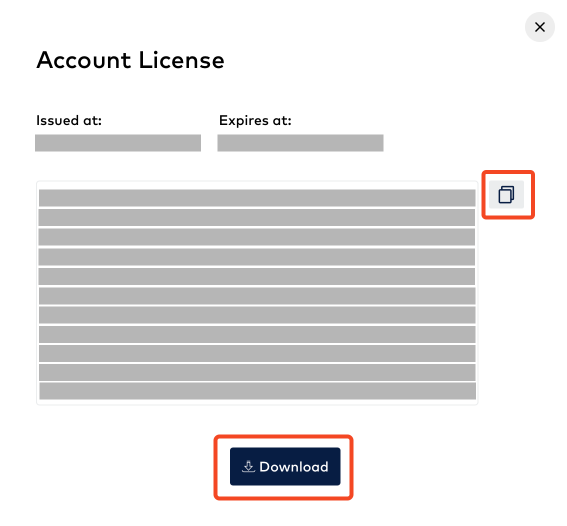
-
Save the license value or file according to your security guidelines. For example, store the license value in a secure vault.
If this is a new deployment, register it with SUBNET using mc license register to enable automatic license updates and support features.
License renewal
Version added
Automatic license renewal and the mc license update command were added in AIStor Server RELEASE.2025-12-20T04-58-37Z.
For earlier versions, use the manual license file replacement method.
MinIO AIStor automatically attempts to renew expired licenses from SUBNET every 24 hours. If your license is renewed in SUBNET, MinIO AIStor detects and applies the updated license without manual intervention.
Verify the renewal was persisted
The 24-hour renewal updates the in-memory license, which produces a License successfully renewed from SUBNET. entry in the server logs.
Applying the renewed license to the cluster configuration is a separate step that can silently fail under certain conditions, such as a rolling upgrade in progress (configuration writes are blocked during mixed-version windows) or a quorum, disk, or IAM-not-ready error on the persist path.
When this happens, the renewal log appears but mc license info and the Console continue to show the old expiry date.
After a renewal cycle, run mc license info ALIAS to confirm the expiry date has updated.
If it has not, run mc license update ALIAS to force the renewed license to persist.
You can also manually update the license using one of the following methods.
Update license using mc license update
Use the mc license update command to update the license in your deployment.
Automatic update from SUBNET:
mc license update ALIASMinIO AIStor retrieves the latest license from SUBNET and applies it to the deployment.
Update using a license file:
mc license update ALIAS /path/to/minio.licenseReplace /path/to/minio.license with the path to your downloaded license file.
- Replace
ALIASwith the alias for your deployment.
Update license by replacing the license file
You can also update the license by replacing the license file on all MinIO AIStor nodes.
-
Use the Accessing your license instructions to download the new license from SUBNET.
-
Replace the license file on all MinIO AIStor nodes.
Upgrade the Helm installation with the new license:
helm upgrade -n aistor aistor minio/aistor-operator \
  --set license="eyJhbGciOiJFUzM4NCIsInR..."
Replace the license value with your decoded JWT token from SUBNET.
If you use a custom values file, include it in the upgrade:
helm upgrade -n aistor aistor minio/aistor-operator \
  --set license="eyJhbGciOiJFUzM4NCIsInR..." \
  -f aistor-operator-values.yaml
Replace
minio.licensein/opt/minio/with the newminio.licensefile downloaded from SUBNET.This must be done on each node in the MinIO AIStor deployment.
-
Wait for automatic license refresh or restart MinIO AIStor.
MinIO AIStor automatically detects and applies license file changes every 24 hours.
To apply the license immediately, restart MinIO AIStor by running:
mc admin service restart ALIAS- Replace
ALIASwith the alias for your deployment.
Downtime
Restarting MinIO AIStor may result in minimal downtime for your MinIO AIStor server.
- Replace
-
Verify the license was applied successfully.
mc license info ALIASReplace
ALIASwith the alias for your deployment.
License expiration
It is important to keep an active license to maintain access to MinIO AIStor and the data stored in your deployment.
When a license expires, MinIO AIStor transitions through several states. The server never terminates due to license expiration. The following tables summarize the effects of license expiration.
MinIO Software License
| Status | State | Notifications | Effect |
|---|---|---|---|
| Unexpired | Normal | None | Full access to all of MinIO AIStor |
| Expiration within 30 days | Normal | Banner in SUBNET, emails to users | Full access to all of MinIO AIStor |
| Expired less than 30 days | Normal (grace period) | Banner in SUBNET, emails to users, server logs | Full access to all of MinIO AIStor. MinIO AIStor attempts automatic license renewal from SUBNET every 24 hours. |
| Expired 30 to 90 days | Read-only | Banner in SUBNET, emails to users, server logs | Read operations allowed. Write operations blocked. Admin API and Console remain accessible. MinIO AIStor attempts automatic license renewal from SUBNET every 24 hours. |
| Expired 90 days or more | Offline | Banner in SUBNET, server logs | All S3 operations blocked. Admin API, Console, health checks, and metrics remain accessible for license recovery. |
The post-expiry day counts in the table are the defaults: a 30-day grace period followed by a 60-day read-only period. Each period ends the moment the next one begins, so a deployment is read-only at exactly 30 days after expiry and offline at exactly 90 days. A license can carry its own grace and read-only durations as claims in the license token. When those claims are present, they take precedence over the defaults. The server log warnings shown below name the exact dates that apply to your license.
License state details
Normal mode
When you have a valid license, MinIO AIStor operates with full functionality. All S3 operations and administrative functions are available.
A warning message appears in the server logs when the license will expire within 30 days. The message includes the expiration date and a recommendation to renew immediately.
Grace period (up to 30 days after expiry)
A non-trial license enters a grace period when it expires. Read and write access does not change during the grace period. MinIO AIStor adds a warning to the server logs.
Entering the grace period does not by itself move the minio_cluster_config_license_status metric to readonly.
Server log message
License expired on expiry-date, MinIO will disallow object creation starting from grace-end-date. Renew immediately to avoid outage.
Trial licenses have no grace period. See MinIO trial license for the trial timeline.
Read-only mode (30 to 90 days after expiry)
After the grace period ends, MinIO AIStor enters read-only mode. The server continues running but blocks write operations to prevent data modification.
Read operations remain available to allow data retrieval and migration.
Server log message
License expired on expiry-date. MinIO is currently operating in read-only mode, wherein object creation is disallowed. Server will enter offline mode on offline-date. Renew immediately to avoid outage.
Operations blocked in read-only mode:
- Creating buckets
- Uploading objects, including copies, appends, and browser form uploads
- Starting a new multipart upload
- Restoring objects from a remote tier
- Writing to Tables
Operations allowed in read-only mode:
- Reading objects
- Listing buckets and objects
- Downloading objects
- Deleting objects, versions, and buckets
- Finishing a multipart upload that already started
- Changing bucket configuration, such as policies, lifecycle rules, replication, and versioning
- All Admin API operations
- Console UI (read-only)
Deletes remain available deliberately: removing data is how you recover capacity.
Blocked operations return an error:
- HTTP Status:
403 Forbidden - Error Code:
AccessDenied - Message: “Write operations are not allowed. Server is running in read-only mode due to missing or expired license.”
Offline mode (90 days or more after expiry)
After the read-only period ends, MinIO AIStor enters offline mode. In offline mode, all S3 API operations are blocked, including reads and writes.
The server continues running to allow license recovery. The following remain accessible:
- Admin API endpoints (
/minio/admin/*) for license management - Console UI (
/minio/console/*) for administrative access - Health check endpoints (
/minio/health/*) - Metrics endpoints (
/minio/metrics/v3/*)
While the Console UI is accessible in offline mode, any object operations (upload, download, browse) performed through the console fail because they use the S3 API internally.
Server log message
No valid license found, running in offline mode. All S3 operations are denied. Please install a valid license to restore service.
Blocked operations return an error:
- HTTP Status:
403 Forbidden - Error Code:
AccessDenied - Message: “Access denied. License has fully expired. Please install a valid license to restore service.”
No license installed
Version changed
Starting without a license was added in AIStor Server RELEASE.2025-12-20T04-58-37Z.
Earlier versions require a valid license to start.
If MinIO AIStor starts without a license, the server operates in offline mode. All S3 operations are blocked, but the Admin API and Console remain accessible for license installation.
To install a license:
- Access your license from SUBNET
- Use
mc license registerto register a new deployment with SUBNET, or usemc license updateto retrieve the latest license from SUBNET or apply a license file - Verify the license status with
mc license info
The cluster immediately returns to normal operation after a valid license is installed.
Recovering from offline or read-only mode
If your cluster is in offline or read-only mode, install a valid license to restore full functionality:
mc admin config set ALIAS subnet license=<LICENSE_TOKEN>Replace ALIAS with the alias for your deployment.
Replace <LICENSE_TOKEN> with your license token from SUBNET.
The server does not need to be restarted. The cluster immediately returns to normal operation after a valid license is installed.
Monitoring license status
MinIO AIStor exposes Prometheus metrics for license monitoring:
| Metric | Description |
|---|---|
minio_cluster_config_license_status | Current license state: normal, readonly, or offline |
minio_cluster_config_license_expires_in | Seconds until license expires (-1 for non-expiring licenses) |
minio_cluster_config_license_renewal_status | Last renewal attempt result: success, failed, or expired |
Use these metrics to set up alerts and get notified before your license expires.
MinIO trial license
| Status | State | Notifications | Effect |
|---|---|---|---|
| Unexpired | Normal | None | Full access to MinIO AIStor |
| Expired less than 60 days | Read-only | Emails to users, server logs | Read operations allowed. Write operations blocked. Admin API and Console remain accessible. MinIO AIStor attempts automatic license renewal from SUBNET every 24 hours. |
| Expired 60 days or more | Offline | Emails to users, server logs | All S3 operations blocked. Admin API, Console, health checks, and metrics remain accessible for license recovery. |
Trial licenses have no grace period. The server enters read-only mode immediately upon expiration. The read-only period ends the moment offline mode begins, so a trial deployment is offline at exactly 60 days after expiry.
Default license phase durations may vary. Contact the MinIO team on SUBNET with any questions.
Licensed storage capacity
A license can carry a storage capacity limit, reported as Org-level Capacity Limit by mc license info.
When stored data grows past that limit, MinIO AIStor blocks new writes.
This is separate from license expiration.
A capacity block can happen while your license is valid and current.
A license that reports N/A for the limit has no capacity enforcement.
What happens when the limit is reached
There is no grace period. Writes begin failing as soon as measured usage exceeds the limit.
Blocked operations return an error:
- HTTP Status:
403 Forbidden - Error Code:
AccessDenied - Message: “Write operations are not allowed. Cluster usage has exceeded the licensed storage capacity. Free up space or upgrade the license to restore write access.”
The error code is not specific to capacity
The error code is AccessDenied, the same code MinIO AIStor returns when a request fails a permission check.
An application that needs to tell the two apart must read the message, not the code.
Operations blocked when over capacity:
- Uploading objects, including copies, appends, and browser form uploads
- Starting a new multipart upload
- Restoring objects from a remote tier
- Creating buckets
- Writing to Tables
- Running an object speed test
Operations allowed when over capacity:
- Reading, listing, and downloading objects
- Deleting objects, versions, and buckets
- Finishing a multipart upload that already started, including uploading its remaining parts
- Changing bucket configuration, such as policies, lifecycle rules, replication, and versioning
- Admin API, and administrative access to Console
Console object operations follow the same rules as the S3 API: browsing and downloads work, uploads fail.
Recovering from a capacity block
Choose either remedy:
- Free space. Delete data you no longer need, or let object lifecycle management expire it. Deletes are not blocked, so this works while the cluster is over capacity.
- Raise the limit. Obtain a license with a larger capacity from SUBNET, then apply it with
mc license update.
Usage is measured from the cluster’s data usage figures, which MinIO AIStor refreshes periodically rather than after every write. Expect a delay in both directions: writes may keep succeeding for a short time after usage passes the limit, and may keep failing for a short time after you delete data. If MinIO AIStor cannot read current usage, it allows writes rather than blocking them.
Monitoring capacity state
While the cluster is over capacity:
minio_cluster_config_license_statusreportsreadonly.- Health endpoints report a server status of
license-readonly. See Healthcheck probe.
Both signals are shared with the expiry read-only state, so neither one tells you which cause applies.
To identify the cause, compare the expiry date and capacity limit from mc license info against current usage from mc admin info, or read the message returned by a failed write.
Licensed features
Your license lists the product features it grants. MinIO AIStor checks the list before it authenticates a request, so the refusal does not depend on the caller’s identity or permissions.
The licensable features are Objects, Tables, Memory, and Files.
How the check resolves depends on the version of the license you hold:
| License version | Behavior |
|---|---|
| Version 1 | The list is authoritative. A feature the license does not list is denied. |
| Version 0 | The license lists no features. Objects and Tables are available, and every other feature stays off. |
A request for an unlicensed feature returns XMinioFeatureNotLicensed.
mc license info reports the plan, capacity, and expiry, but not the feature list.
To confirm which features your license grants, check the license in SUBNET or contact your MinIO account representative.
Do this before upgrading a deployment that uses a licensable feature, because a version 1 license that omits it denies the feature after the upgrade.
Two families are gated this way today: the Iceberg catalog under AIStor Tables, and the Delta Sharing consumer and admin APIs. The Delta Sharing health probe stays reachable so that an unlicensed deployment can still be monitored.
OEM and embedded deployments
The MinIO OEM Agreement permits OEM customers to integrate MinIO AIStor (in object code form) into a Vendor Combined Product and distribute it as part of that offering. OEM customers may sublicense MinIO AIStor to their end users under terms that include the restrictions and protections specified in the OEM Agreement.
The documentation in this site applies to all MinIO AIStor deployments, including those embedded within a Vendor Combined Product. OEM customers should follow the same installation, configuration, and administration procedures documented here regardless of their deployment context.
MinIO’s indemnification obligations apply only to MinIO AIStor Enterprise Lite and Enterprise plan purchases, as described in the OEM Agreement. MinIO is not liable for issues arising from use that does not comply with the OEM Agreement or the procedures documented on this site.
OEM Agreement governs licensing terms
The OEM Agreement defines the permitted use, distribution, and sublicensing terms for OEM deployments. This documentation provides product deployment and administration guidance but does not modify or extend the terms of any license agreement.
Contact SUBNET or your MinIO account representative with questions about OEM licensing.
MinIO AIStor Free (community use)
MinIO AIStor minio.RELEASE.2025-12-20T04-58-37Z or later adds support for MinIO AIStor Free licenses.
MinIO AIStor Free allows small organizations, developers, and researchers to deploy single-node MinIO AIStor resources into environments that do not require high availability or select enterprise features.
The following features are available only with MinIO AIStor Enterprise Lite and Enterprise licenses:
- Distributed (multi-node) deployments
- Replication (site, bucket, or batch)
- Object tiering and lifecycle transitions
- Version-specific object deletion
- Profiling and diagnostics (CPU/memory profiling, health info, data inspection)
- Performance testing (network, drive, object, and site replication benchmarks)
- Telemetry and console log access
- Background heal status
- Top lock visibility
- Any
mc supportcommand - Encryption at rest
MinIO AIStor Free is governed by the MinIO AIStor Free Agreement. This license does not include any Service Level Agreement (SLA), Service Level Objective (SLO), or similar warranty or service agreement.
Encryption on MinIO AIStor Free
A free license does not permit encryption at rest.
MinIO AIStor refuses each of the following with XMinioPaidTierLicenseRequired and HTTP status 405 Method Not Allowed:
- A write that requests server-side encryption
PutBucketEncryption- Creating a KMS key
- A
KeyRotatebatch job - Setting an encryption configuration on a Tables warehouse
A free-tier deployment with a KMS configured does not automatically encrypt writes. Plain writes are stored in plaintext, and objects written earlier stay encrypted and readable, so a bucket can hold both.