Fortanix SDKMS
This tutorial shows how to setup a KES server that uses Fortanix SDKMS as a persistent and secure key store:
Fortanix SDKMS
-
Create Application
Register a new application that can authenticate and communicate to the Fortanix SDKMS instance.
-
Go to the
Appssection in the Fortanix SDKMS UI.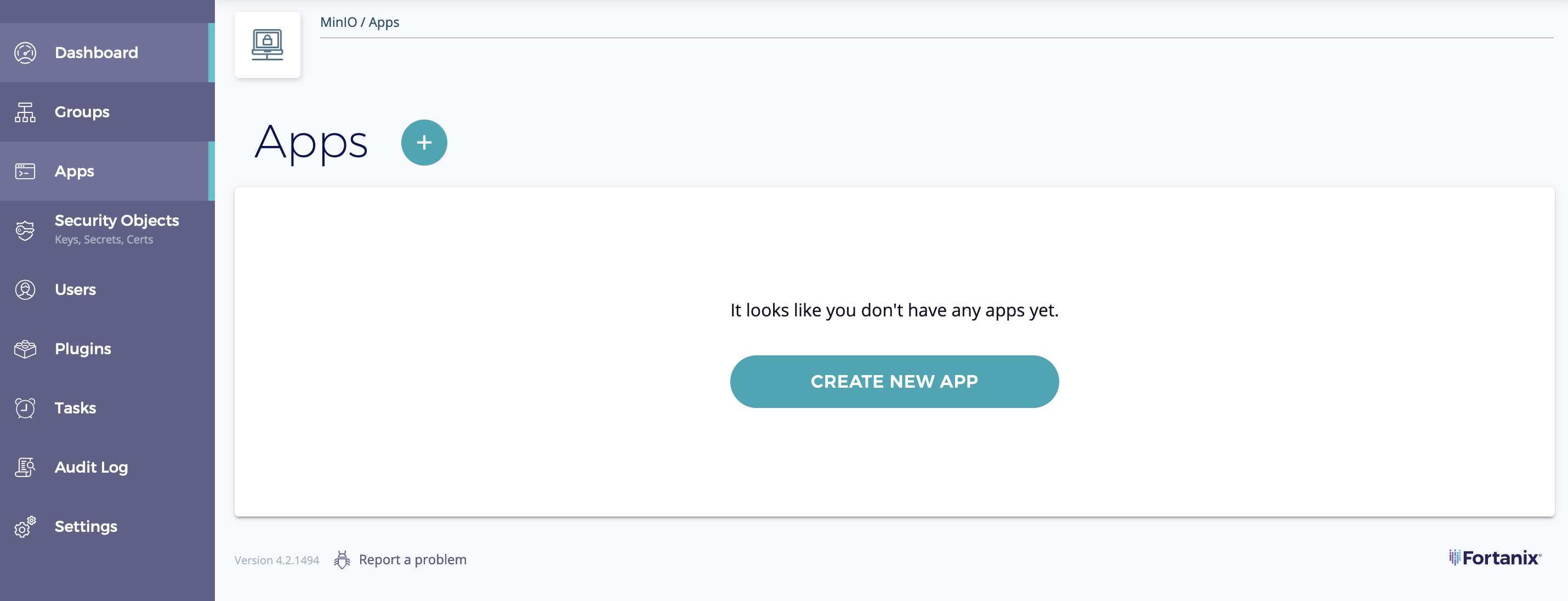
-
Give the application a descriptive name, such as
KES -
Select
REST APIas the integration -
Choose
API Keyas the authentication method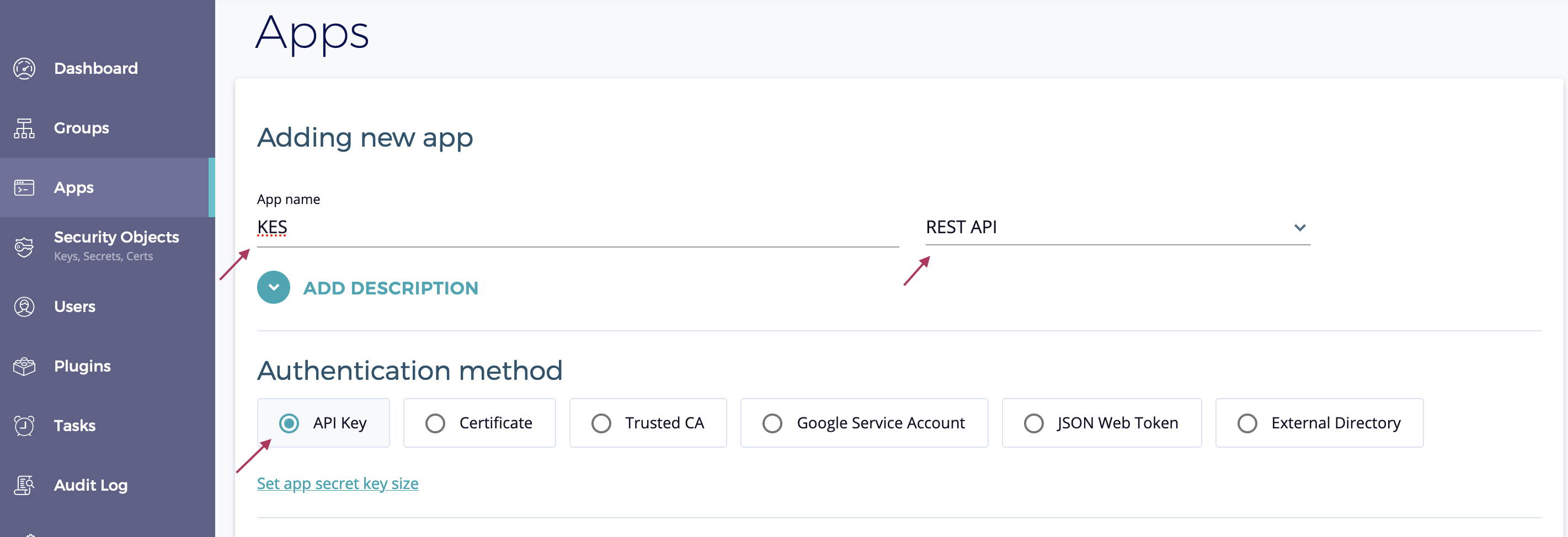
-
-
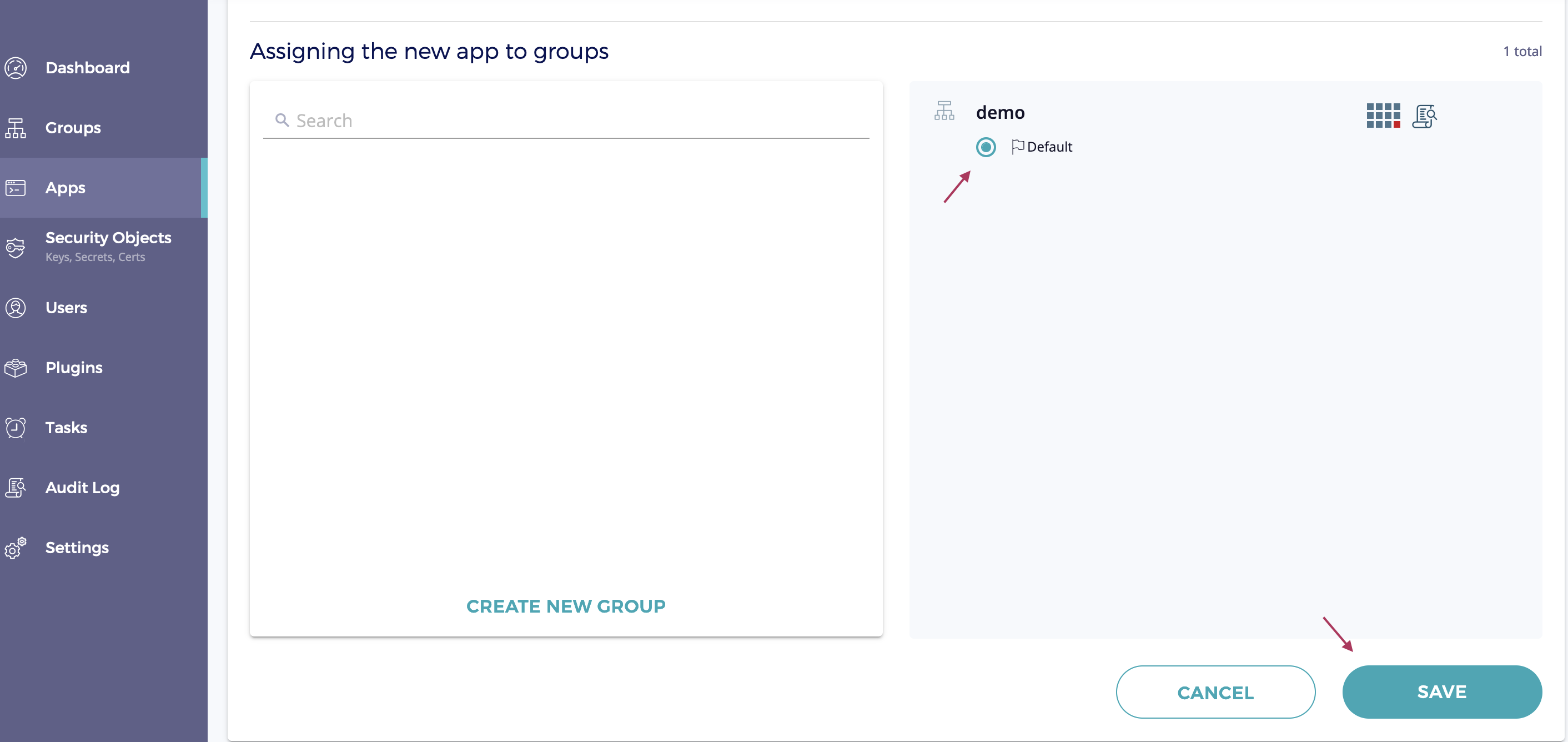
Assign Group
The assigned group serves as the default for the application. Newly created keys belong to this group unless you specify an explicit group ID in the KES configuration file.
-
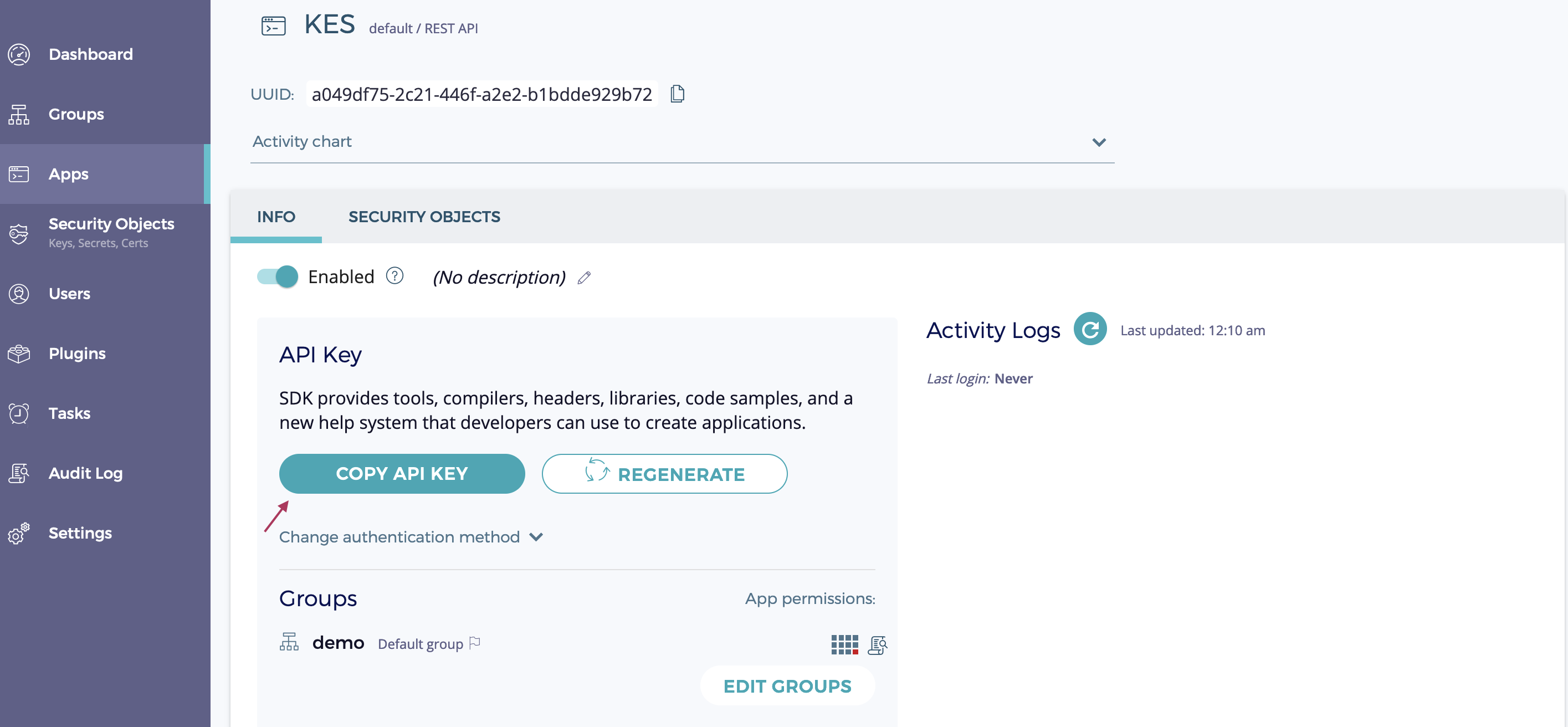
Create the application and copy the application’s API key.
This key is the access credential KES uses to talk to Fortanix SDKMS.
KES Server setup
The KES Server requires a TLS private key and certificate.
The KES server is secure-by-default and can only run with TLS. This tutorial uses self-signed certificates for simplicity.
For a production setup we highly recommend to use a certificate signed by trusted Certificate Authority. This can be either your internal CA or a public CA such as Let’s Encrypt.
-
Generate a TLS private key and certificate for the KES server
The following command generates a new TLS private key
server.keyand a self-signed X.509 certificateserver.certthat is issued for the IP127.0.0.1and DNS namelocalhost(as SAN). Customize the command to match your setup.kes identity new --server --key server.key --cert server.cert --ip "127.0.0.1" --dns localhostAny other tooling for X.509 certificate generation works as well. For example, you could use
openssl:openssl ecparam -genkey -name prime256v1 | openssl ec -out server.key openssl req -new -x509 -days 30 -key server.key -out server.cert \ -subj "/C=/ST=/L=/O=/CN=localhost" -addext "subjectAltName = IP:127.0.0.1" -
Create a private key and certificate
kes identity new --key=app.key --cert=app.cert appYou can compute the
appidentity anytime.kes identity of app.cert -
Create Configuration file
Create the config file named
server-config.yml:address: 0.0.0.0:7373 admin: identity: disabled # We disable the admin identity since we don't need it in this guide tls: key : server.key cert: server.cert policy: my-app: allow: - /v1/key/create/my-app* - /v1/key/generate/my-app* - /v1/key/decrypt/my-app* identities: - ${APP_IDENTITY} keystore: fortanix: sdkms: endpoint: "<your-fortanix-sdkms-endpoint>" # Use your Fortanix instance endpoint. credentials: key: "<your-api-key>" # Insert the application's API key -
Start a KES server in a new window/tab:
export APP_IDENTITY=$(kes identity of app.cert)

kes server --config=server-config.yml --auth=off
The command uses
--auth=offbecause ourroot.certandapp.certcertificates are self-signed. -
In the other tab, connect to the server
export MINIO_KES_CERT_FILE=app.cert export MINIO_KES_KEY_FILE=app.key kes key create -k my-app-key-kis required because we use self-signed certificates. -
Derive and decrypt data keys from the previously created
my-app-key:kes key dek -k my-app-key { plaintext : ... ciphertext: ... }kes key decrypt -k my-app-key <base64-ciphertext>
Using KES with a AIStor Server
AIStor Server requires KES to enable server-side data encryption.
See the KES for AIStor instruction guide for additional steps needed to use your new KES Server with a AIStor Server.
Configuration References
The following section describes the Key Encryption Service (KES) configuration settings to use Fortanix SDKMS as the root KMS to store external keys, such as the keys used for Server-Side Encryption on a AIStor Server.
Fields with ${<STRING>} use the environment variable matching the <STRING> value.
You can use this functionality to set credentials without writing them to the configuration file.
The YAML assumes a minimal set of permissions for the AIStor deployment accessing KES.
As an alternative, you can omit the policy.minio-server section and instead set the ${MINIO_IDENTITY} hash as the ${ROOT_IDENTITY}.
address: 0.0.0.0:7373
root: ${ROOT_IDENTITY}

tls:
  key: kes-server.key
  cert: kes-server.cert

api:
  /v1/ready:
    skip_auth: false
    timeout:   15s

policy:
  minio-server:
    allow:
    - /v1/key/create/*
    - /v1/key/generate/*
    - /v1/key/decrypt/*
    - /v1/key/bulk/decrypt
    - /v1/key/list/*
    - /v1/status
    - /v1/metrics
    - /v1/log/audit
    - /v1/log/error
    deny:
    - /v1/key/generate/my-app-internal*
    - /v1/key/decrypt/my-app-internal*
    identities:
    - ${MINIO_IDENTITY}

  my-app:
    allow:
    - /v1/key/create/my-app*
    - /v1/key/generate/my-app*
    - /v1/key/decrypt/my-app*
    deny:
    - /v1/key/generate/my-app-internal*
    - /v1/key/decrypt/my-app-internal*
    identities:
    - df7281ca3fed4ef7d06297eb7cb9d590a4edc863b4425f4762bb2afaebfd3258
    - c0ecd5962eaf937422268b80a93dde4786dc9783fb2480ddea0f3e5fe471a731

keys:
  - name: "minio-encryption-key-alpha"
  - name: "minio-encryption-key-baker"
  - name: "minio-encryption-key-charlie"

cache:
  expiry:
    any: 5m0s
    unused: 20s
    offline: 0s

log:

  # Log error events to STDERR. Valid values are "on" or "off".
  # Default is "on".
  error: on

  # Log audit events to STDOUT. Valid values are "on" and "off".
  # Default is "off".
  audit: off

keystore:
  fortanix:
    # https://www.fortanix.com/products/data-security-manager/key-management-service
    sdkms:
      endpoint: ""
      group_id: ""
      credentials:
        key: ""
      tls:
        ca: ""
For complete documentation, see the configuration page.
Key | Description |
|---|---|
address | The network address and port the KES server listens to on startup. Defaults to port 7373 on all host network interfaces. |
root | The identity for the KES superuser (root) identity. Clients connecting with a TLS certificate whose hash (kes identity of client.cert) matches this value have access to all KES API operations. Specify disabled to remove the root identity and rely only on the policy configuration for controlling identity and access management to KES. |
tls | The TLS private key and certificate used by KES for establishing TLS-secured communications. Specify the full path for both the private .key and public .cert to the key and cert fields, respectively. |
policy | Specify one or more policies to control access to the KES server. AIStor SSE requires access to the following KES cryptographic APIs: /v1/key/create/* /v1/key/generate/* /v1/key/decrypt/* Specifying additional keys does not expand AIStor SSE functionality and may violate security best practices around providing unnecessary client access to cryptographic key operations. You can restrict the range of key names AIStor can create as part of performing SSE by specifying a prefix before the *. For example, minio-sse-* only grants access to create, generate, or decrypt keys using the minio-sse- prefix. KES uses mTLS to authorize connecting clients by comparing the hash of the TLS certificate against the identities of each configured policy. Use the kes identity of command to compute the identity of the AIStor mTLS certificate and add it to the policy.<NAME>.identities array to associate AIStor to the <NAME> policy. |
keys | Specify an array of keys which must exist on the root KMS for KES to successfully start. KES attempts to create the keys if they do not exist and exits with an error if it fails to create one or more keys. KES does not accept any client requests until it completes validation of all specified keys. |
cache | Specify expiration of cached keys in #d#h#m#s format. Unexpired keys may be used in the event the KMS becomes temporarily unavailable. Entries may be set for any key, unused keys, or offline keys. If not set, KES uses values of 5m for all keys, 20s for unused keys, and 0s for offline keys. |
log | Enable or disable output for error and audit type logging events to the console. |
keystore.fortanix.sdkms.endpoint | The Fortanix SDKMS endpoint - for example: https://sdkms.fortanix.com |
keystore.fortanix.sdkms.group_id | An optional group ID newly created keys will be placed at. For example: ce08d547-2a82-411e-ae2d-83655a4b7617 If empty, the applications default group is used. |
keystore.fortanix.sdkms.credentials | The Fortanix SDKMS access credentials |
keystore.fortanix.sdkms.credentials.key | The application’s API key. For example: NWMyMWZlNzktZDRmZS00NDFhLWFjMzMtNjZmY2U0Y2ViMThhOnJWQlh0M1lZaDcxZC1NNnh4OGV2MWNQSDVVSEt1eXEyaURqMHRrRU1pZDg= |
keystore.fortanix.sdkms.tls | The KeySecure client TLS configuration |
keystore.fortanix.sdkms.tls.ca | Path to one or more PEM-encoded CA certificates for verifying the Fortanix SDKMS TLS certificate. |